Template
Overview
The Template module in the PERCEPTA application allows users to create structured templates for automated data extraction from documents. By defining fields and mapping them directly onto document areas, users can standardize and streamline extraction workflows.
This module is especially useful for handling repetitive document formats such as reports, invoices, forms, and statements.
Key Features
Template Creation: Create reusable templates for structured data extraction.
Field Mapping: Define and map fields directly onto document areas.
Document Preview: Visual interface to draw and assign extraction zones.
File Integration: Select documents from file manager or upload new ones.
Reusable Workflows: Apply templates across multiple documents for consistent results.
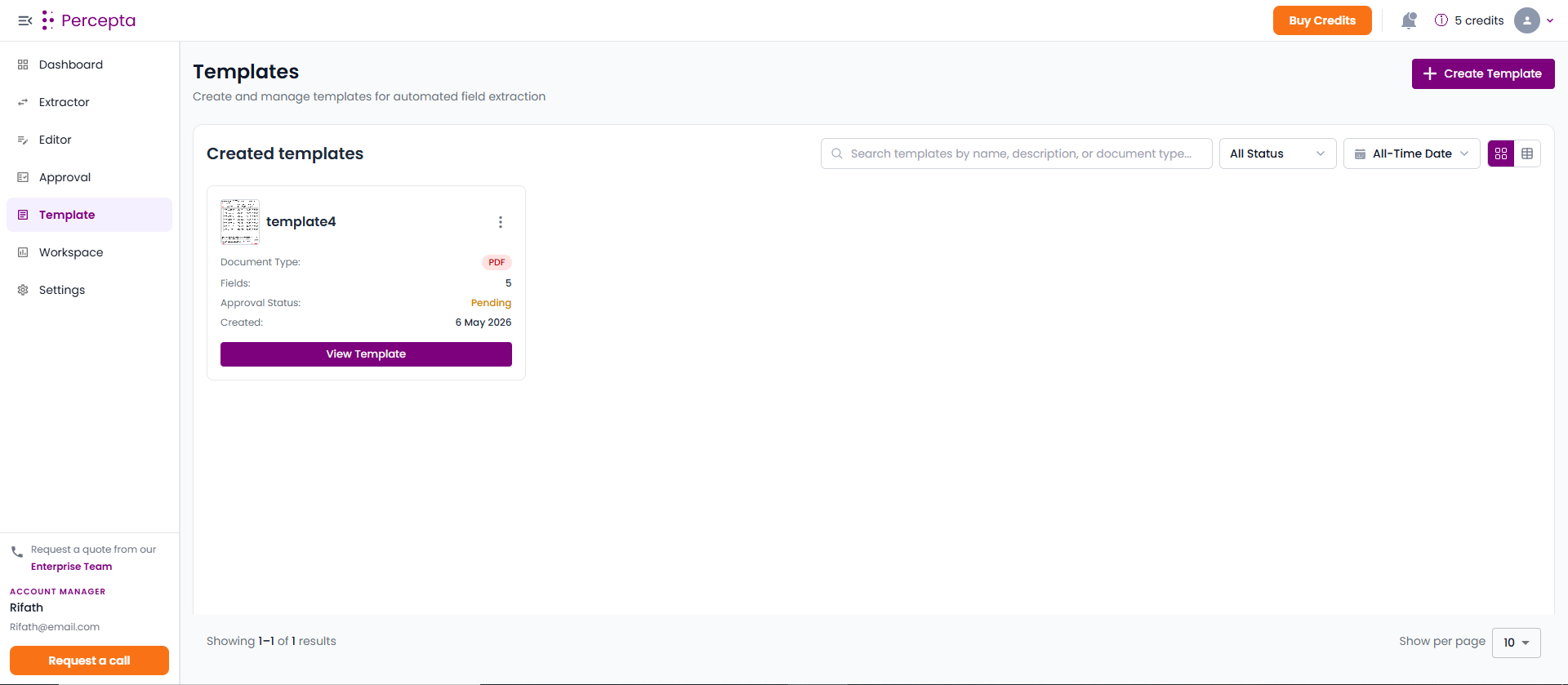
Create Template
The Create Template feature allows users to define extraction fields and map them onto a document.
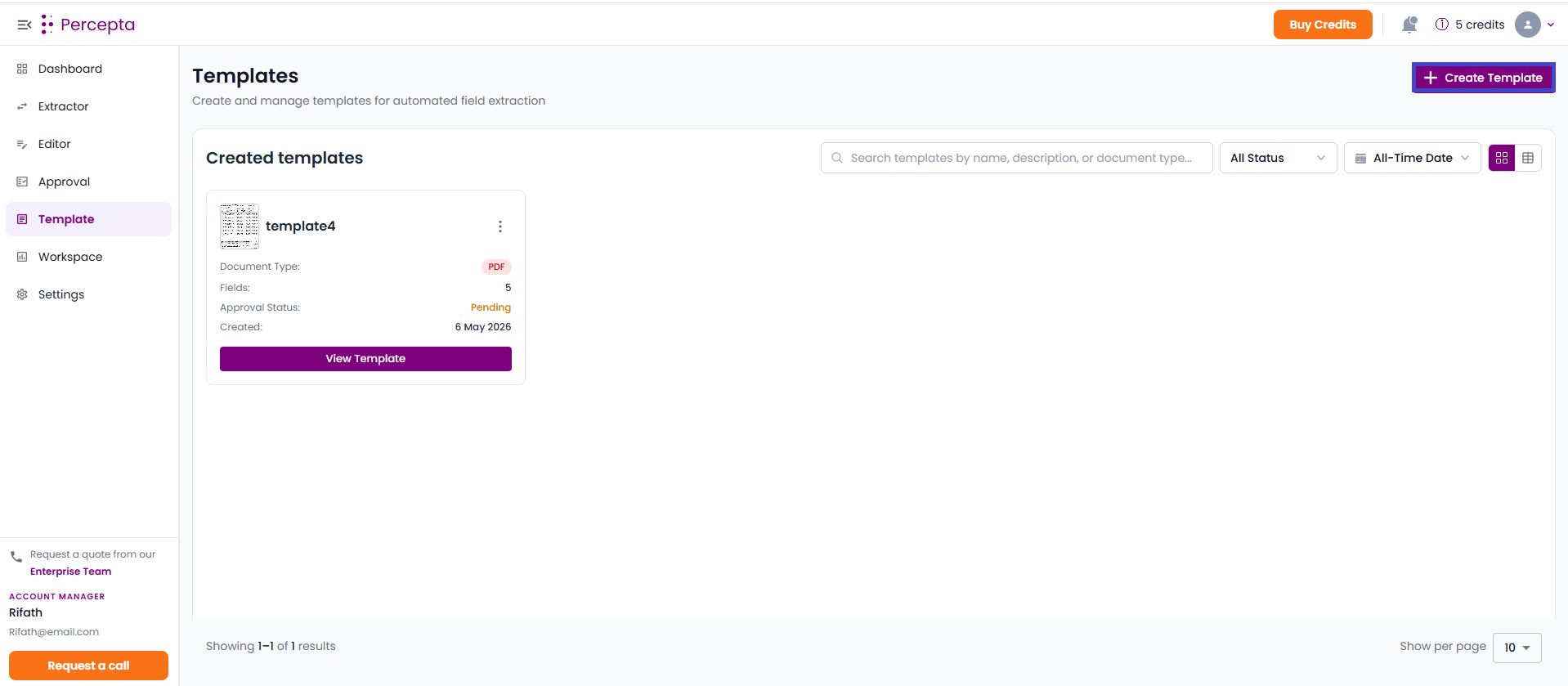
Step 1: Navigate to the Template page and click the “Create Template” button.
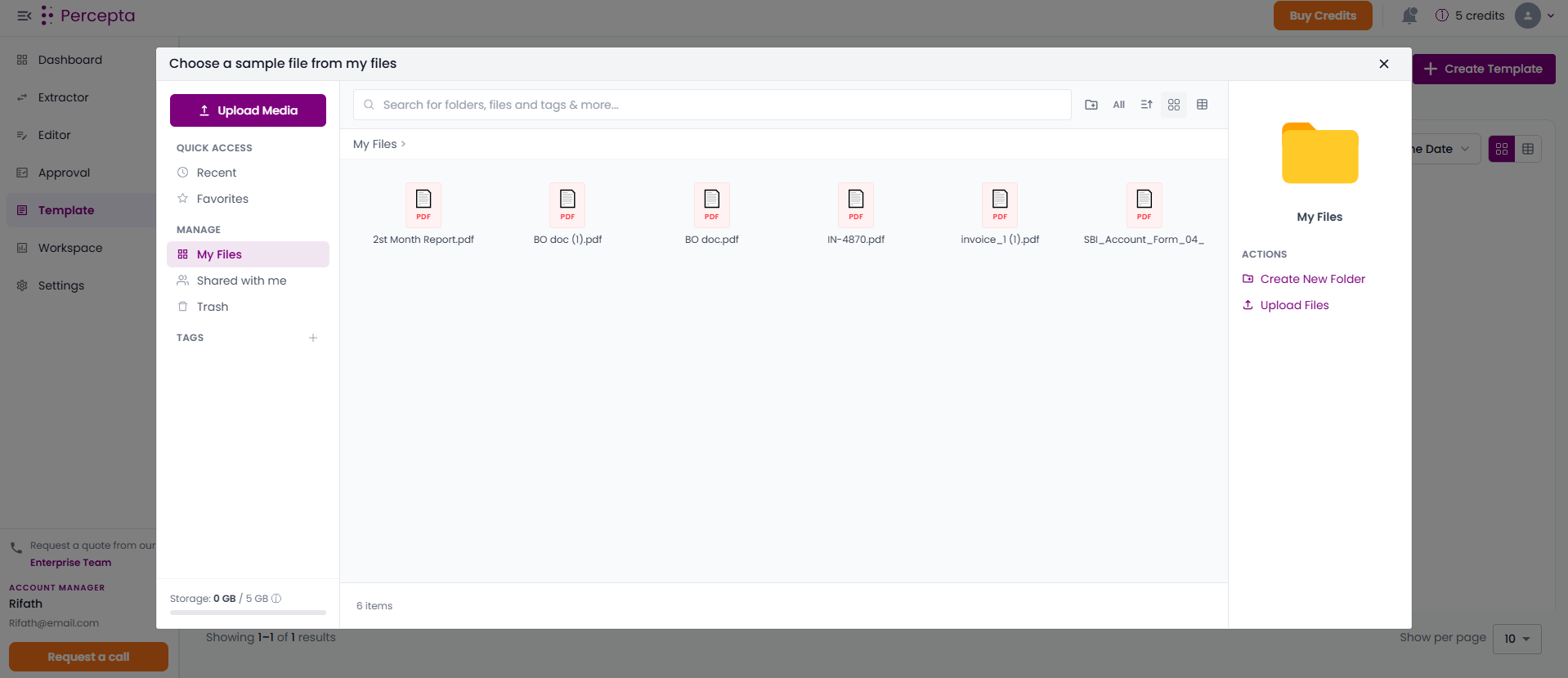
Step 2: The My Files window will open. Select a document to use as a reference.
Browse files under My Files
Use the search bar to locate documents
Upload new files using Upload Media
Step 3: Select a file and click “Create Template” to proceed to the Template Editor.

Template Editor
After selecting a document, the Template Editor interface will open.
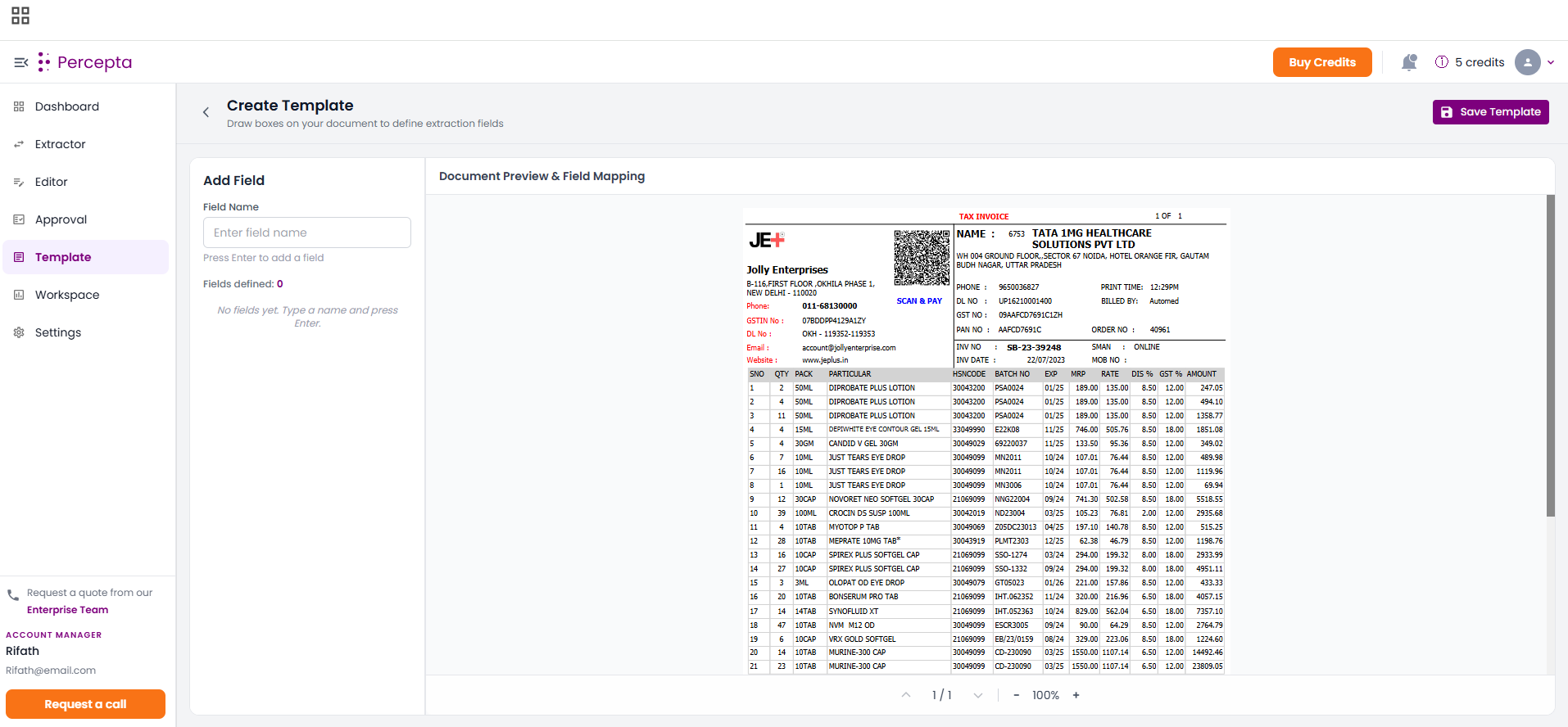
Add Field
The Add Field panel allows users to define extraction fields.
Step 1: Enter a field name (e.g., Name, Date, Phone Number).
Step 2: Press Enter to add the field.
Step 3: The field will appear in the list of defined fields.
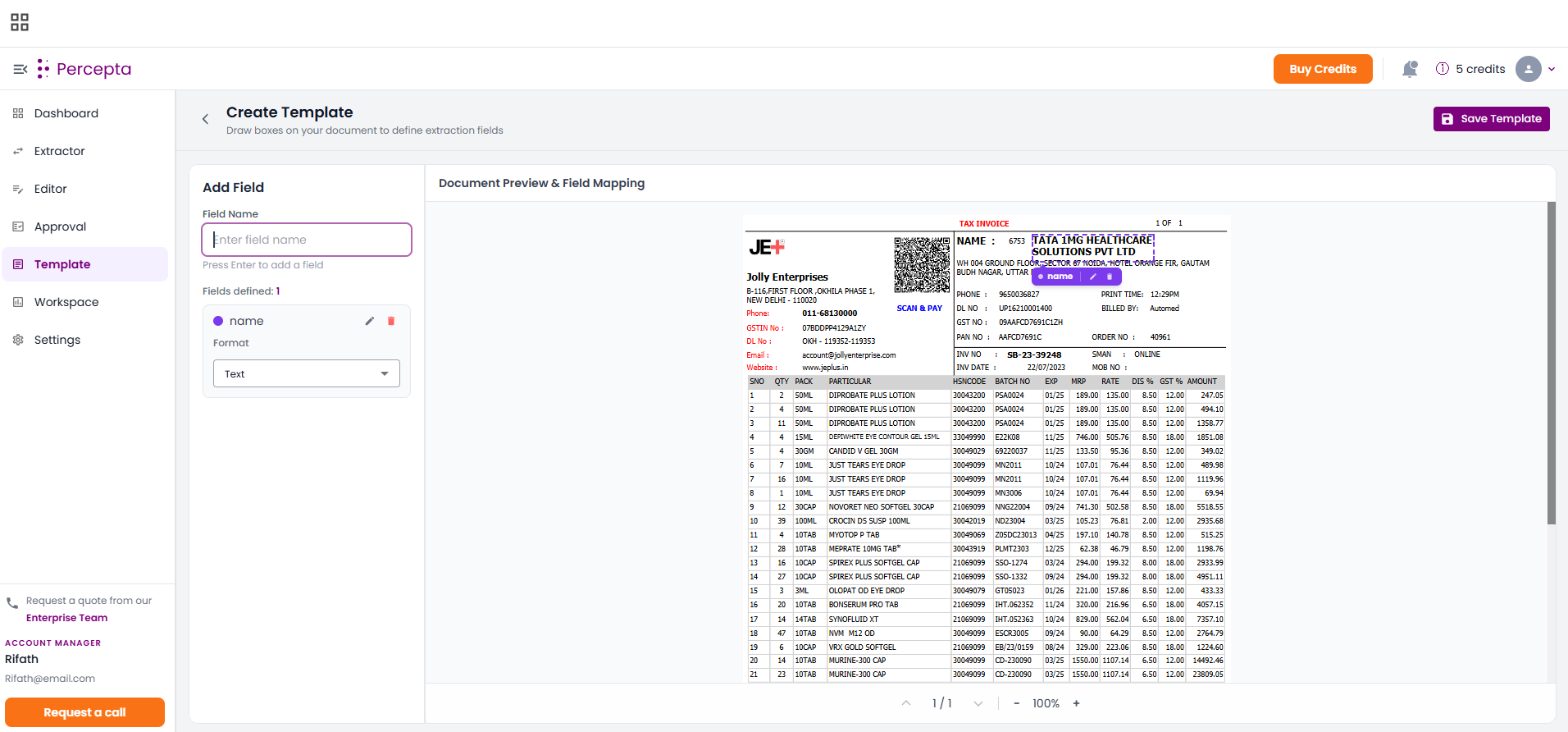
Document Preview & Field Mapping
The document preview panel allows users to visually map fields.
Step 1: Select a field from the list and Draw a bounding box around the corresponding area in the document.
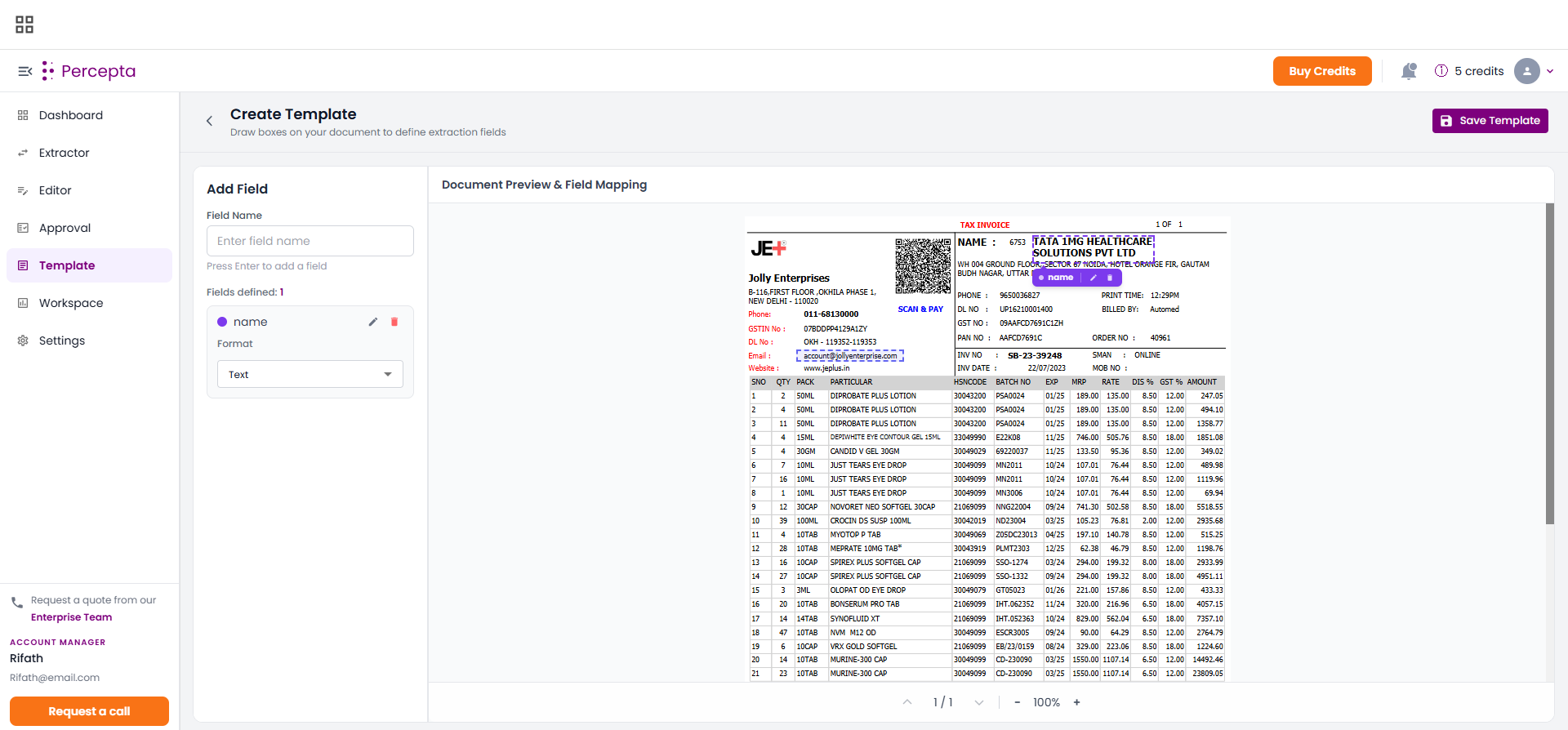
Step 2: Assign the name for the field.
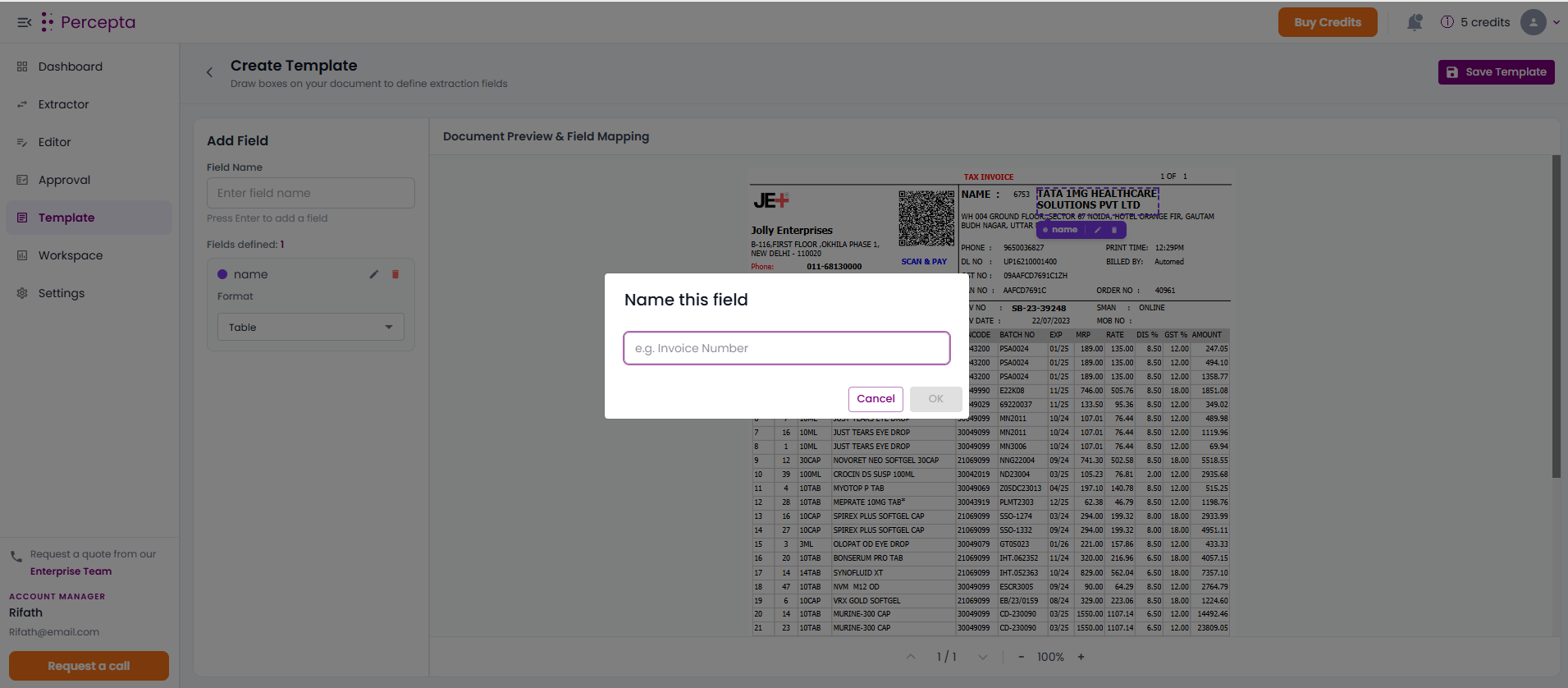
Step 3: Repeat the process for all required fields.
Navigate between pages if the document contains multiple pages
Adjust or resize boxes as needed for accuracy
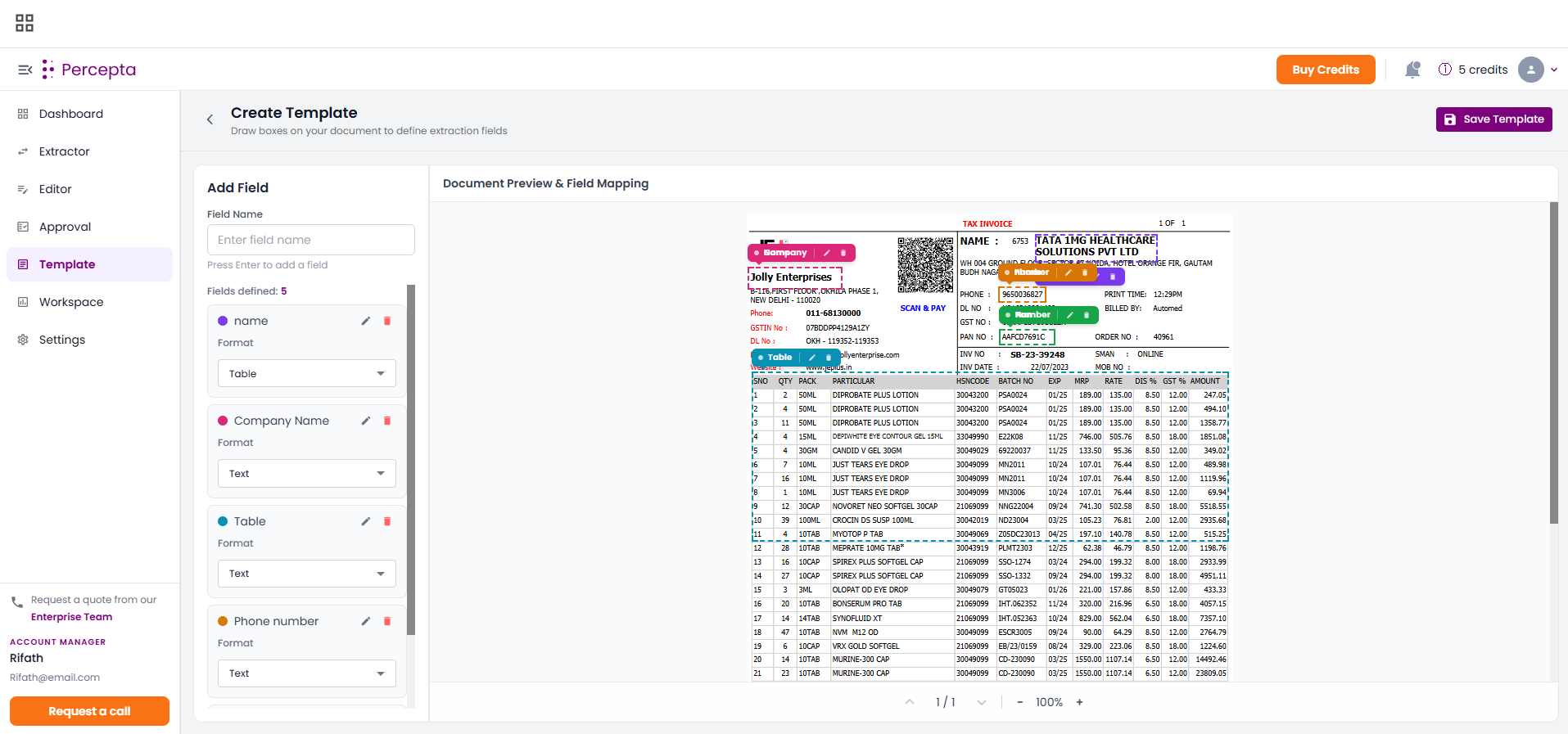
Save Template
Once all fields are defined and mapped:
Step 1: Click the “Save Template” button.
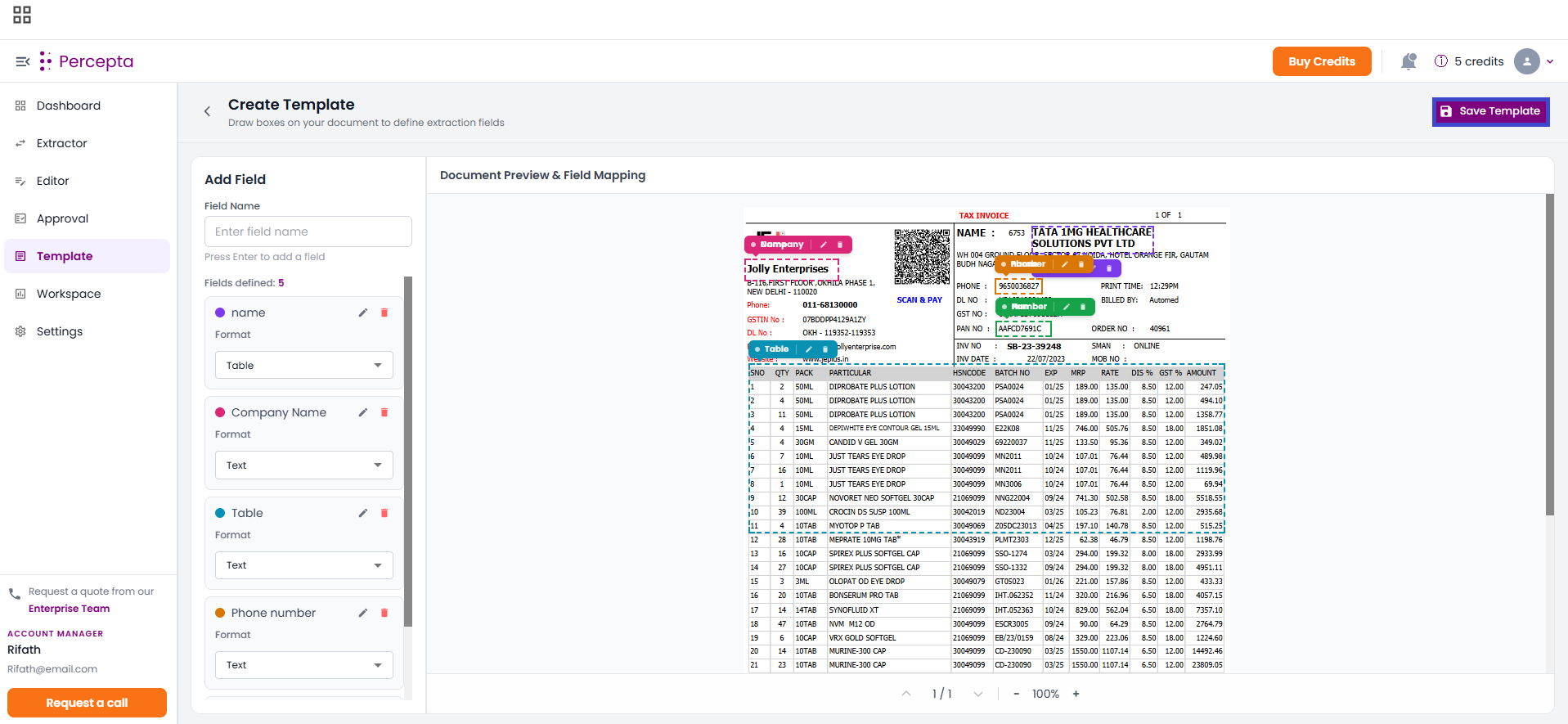
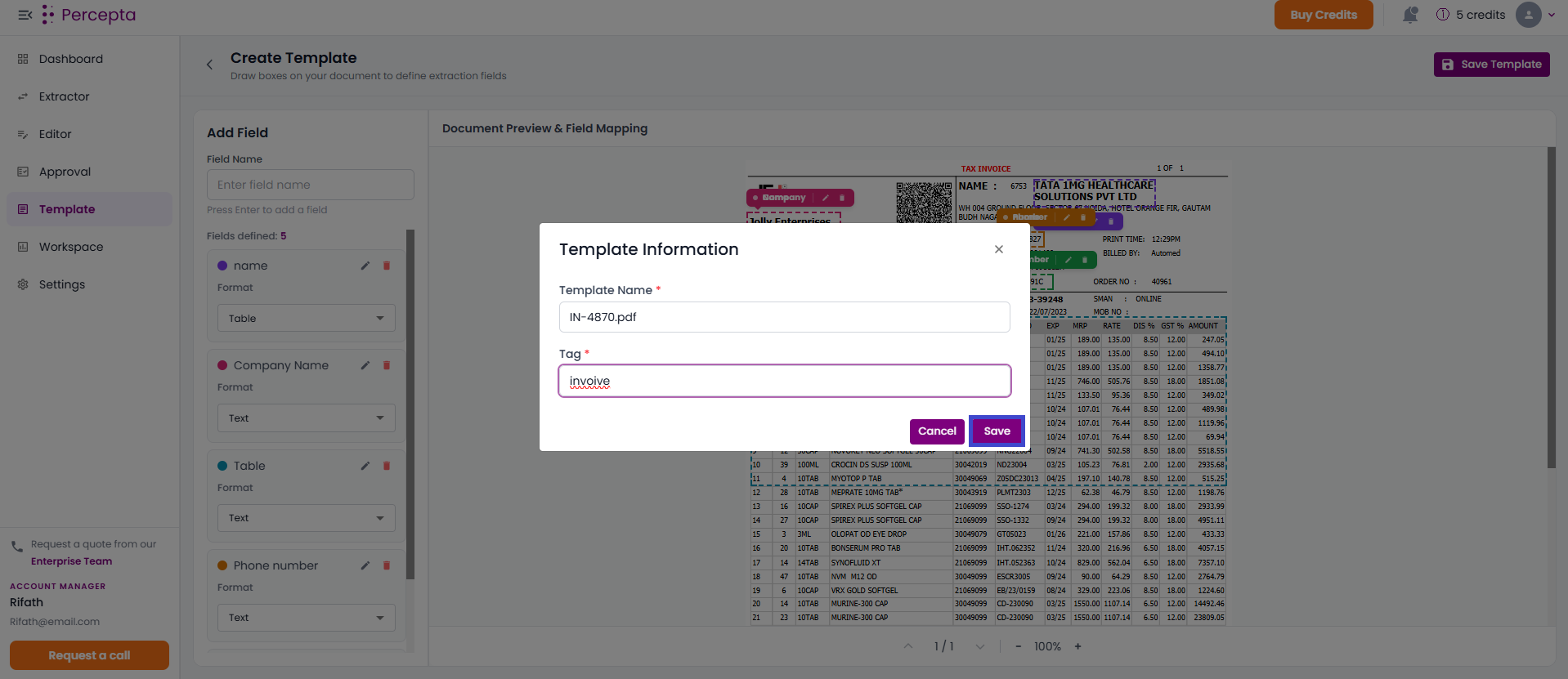
Step 2: A Template Information popup will appear and Enter the required details.
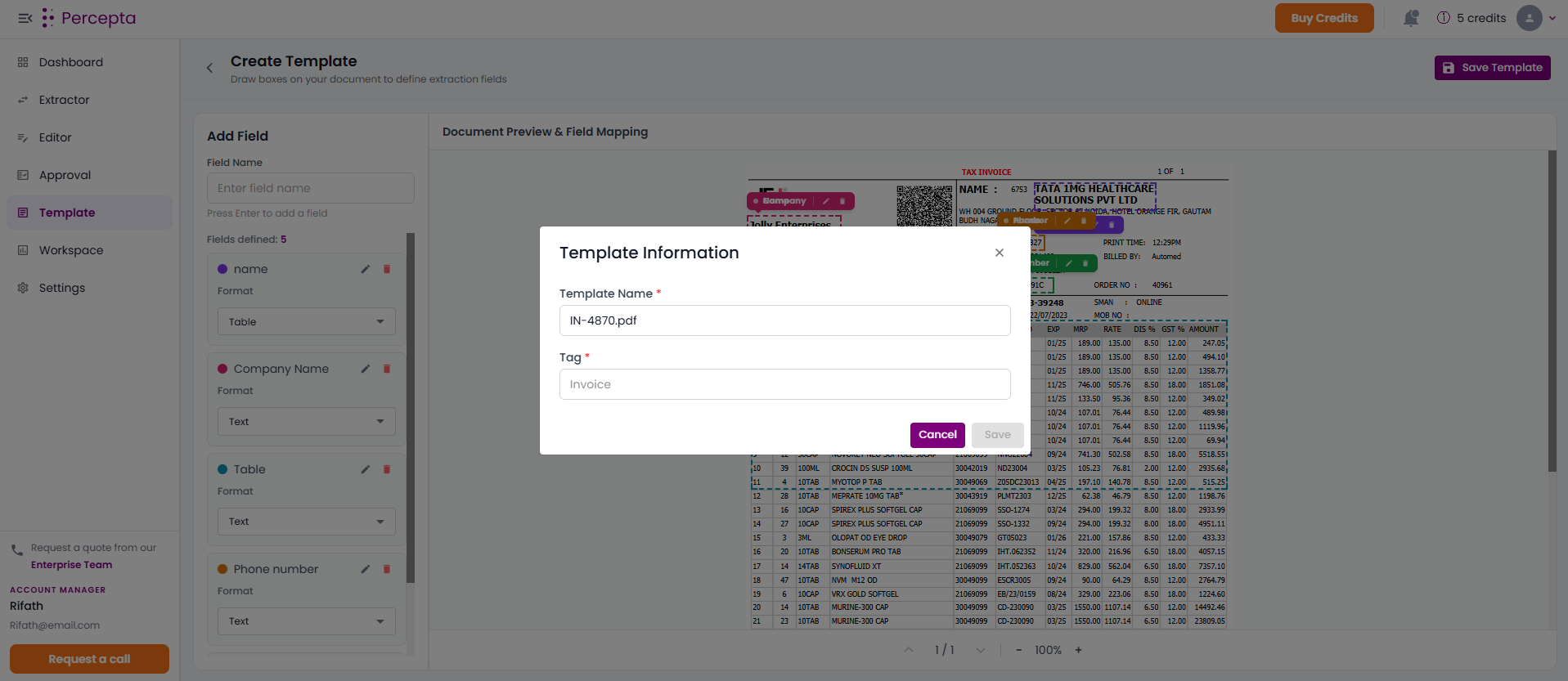
Step 3: Click “Save” to store the template.