Extractor
Overview
The Extractor in the PERCEPTA application enables users to capture, upload, and process documents efficiently. It uses advanced Optical Character Recognition (OCR) technology to extract text from images and documents, making the content editable, searchable, and easy to manage.
This module simplifies data extraction from various document types such as invoices, receipts, labels, and scanned files.
Key Features
Live Capture: Capture images in real time using your device camera and instantly extract text.
Import Files: Upload and process documents from your local system or file manager.
OCR Processing: Automatically detects and extracts text from images with high accuracy.
Edit and Download: Modify extracted content and download it for further use.
Live Capture
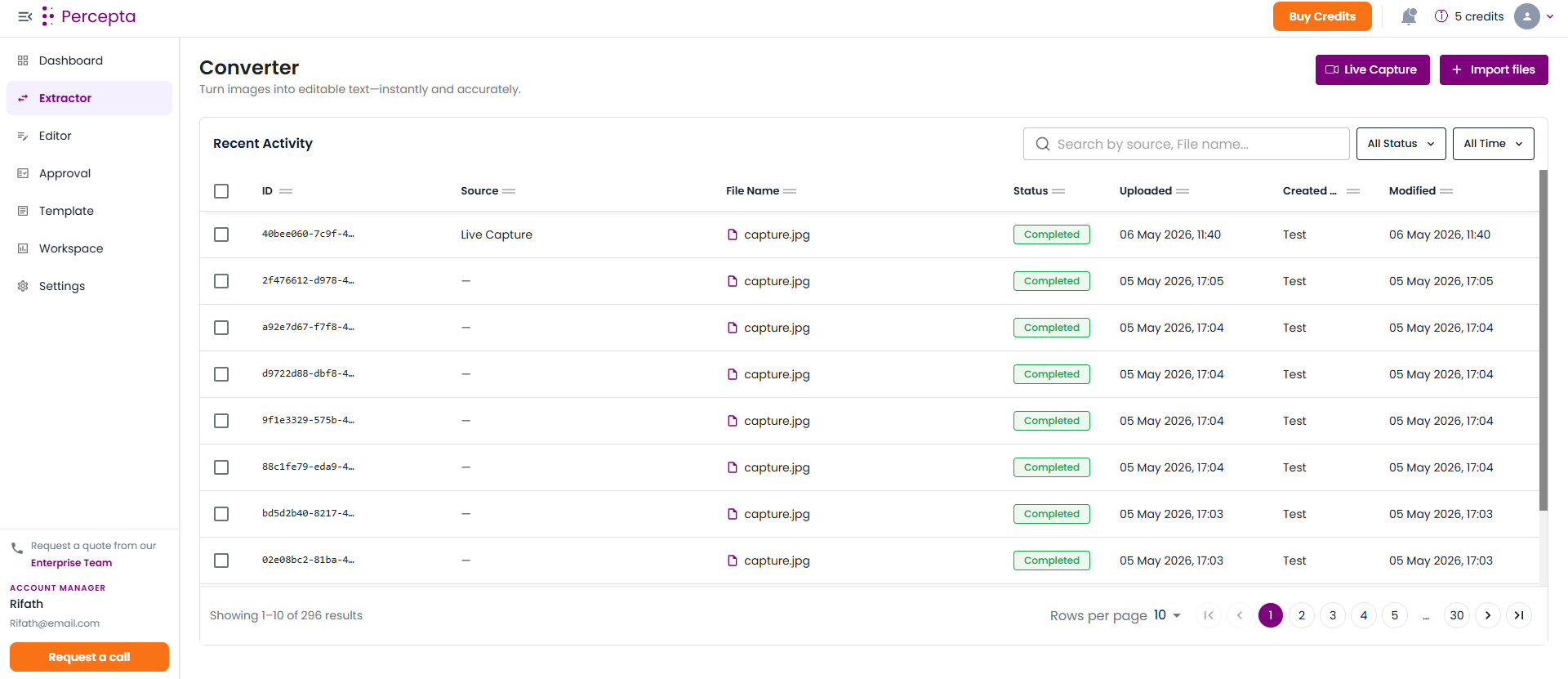
The Live Capture feature allows users to capture images in real time using a camera and extract text instantly.
Step 1: Navigate to the Extractor page and click the “Live Capture” button.
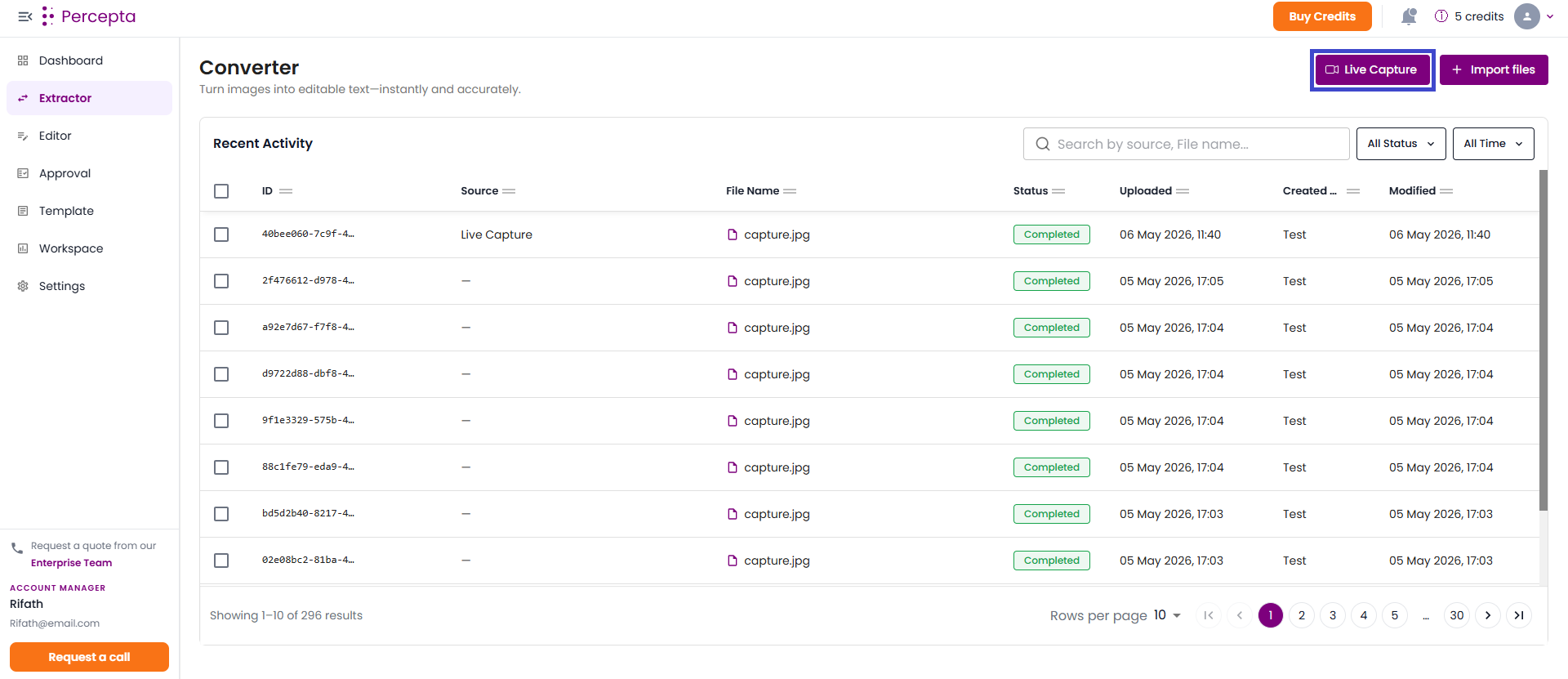
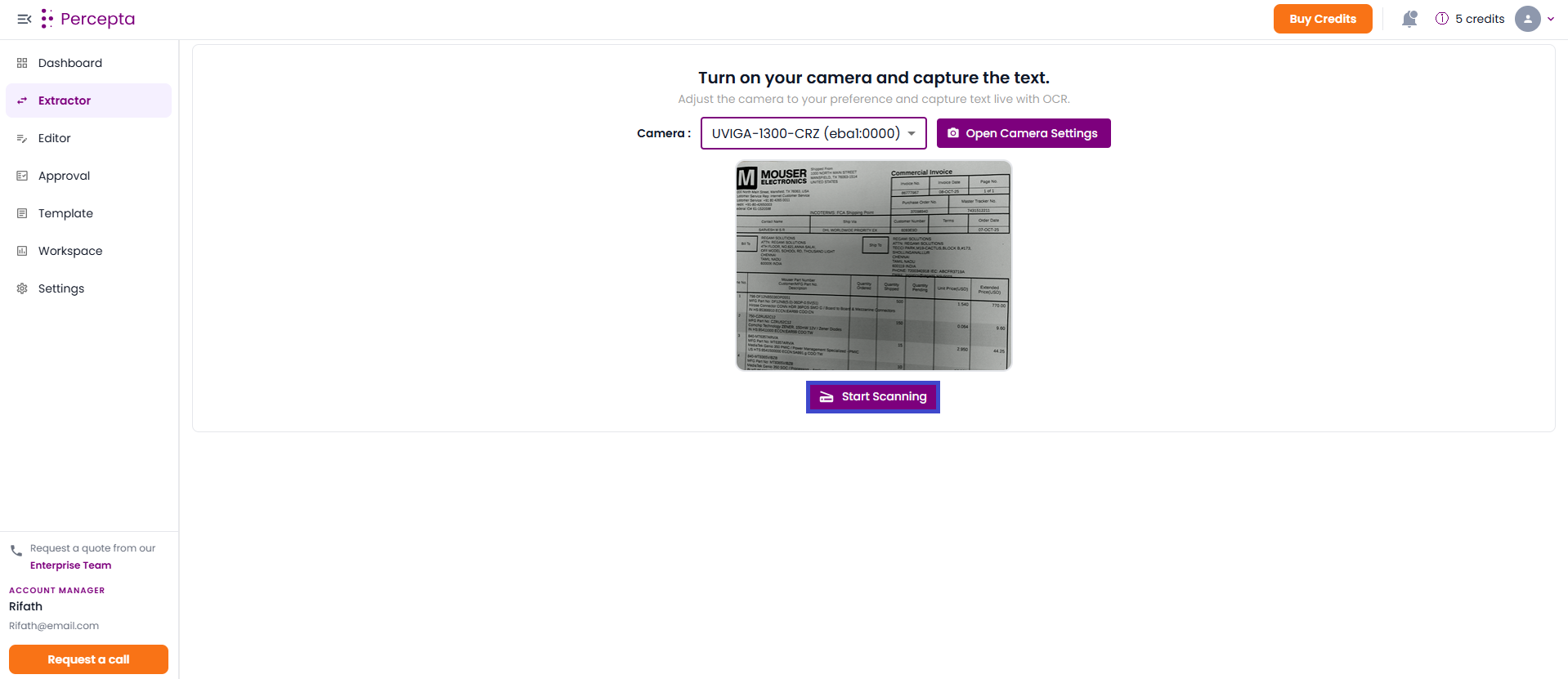
Step 2: Select your preferred camera from the dropdown menu.
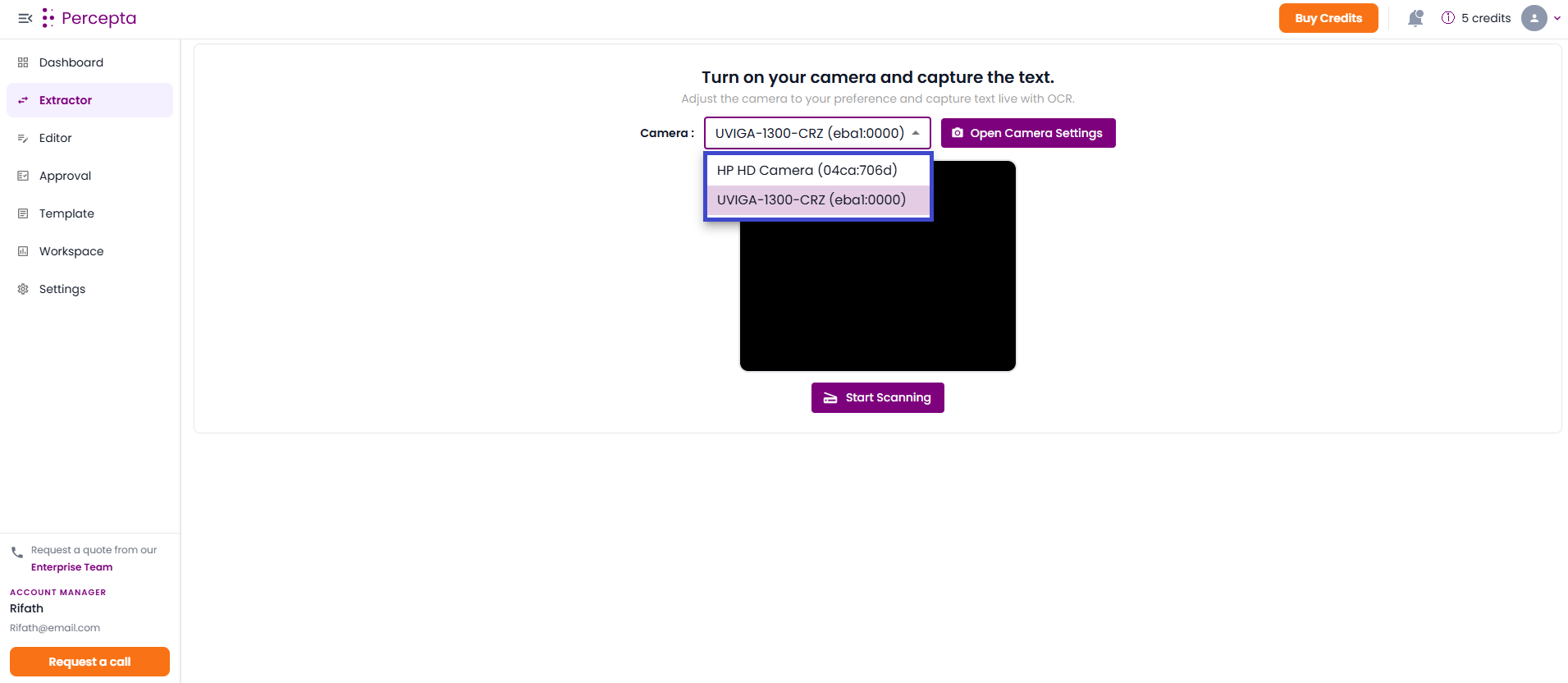
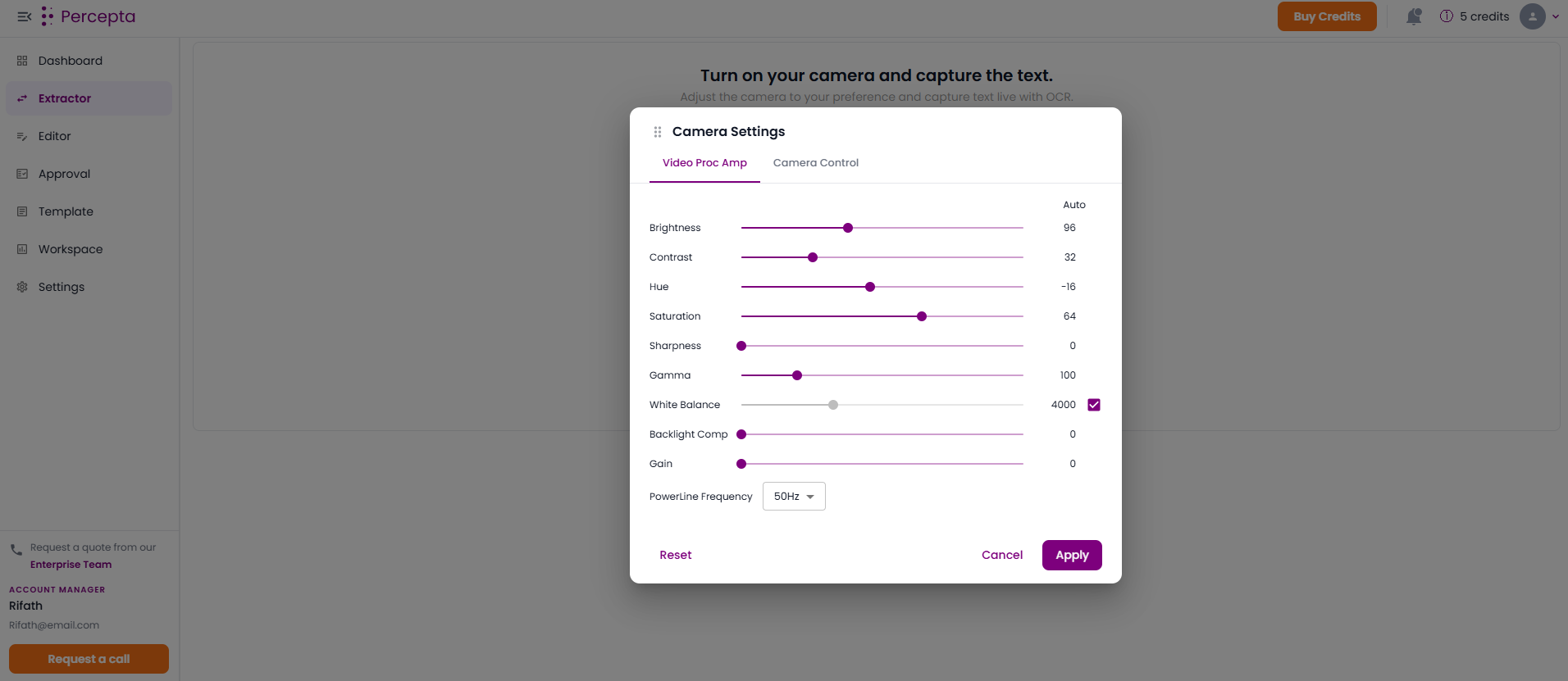
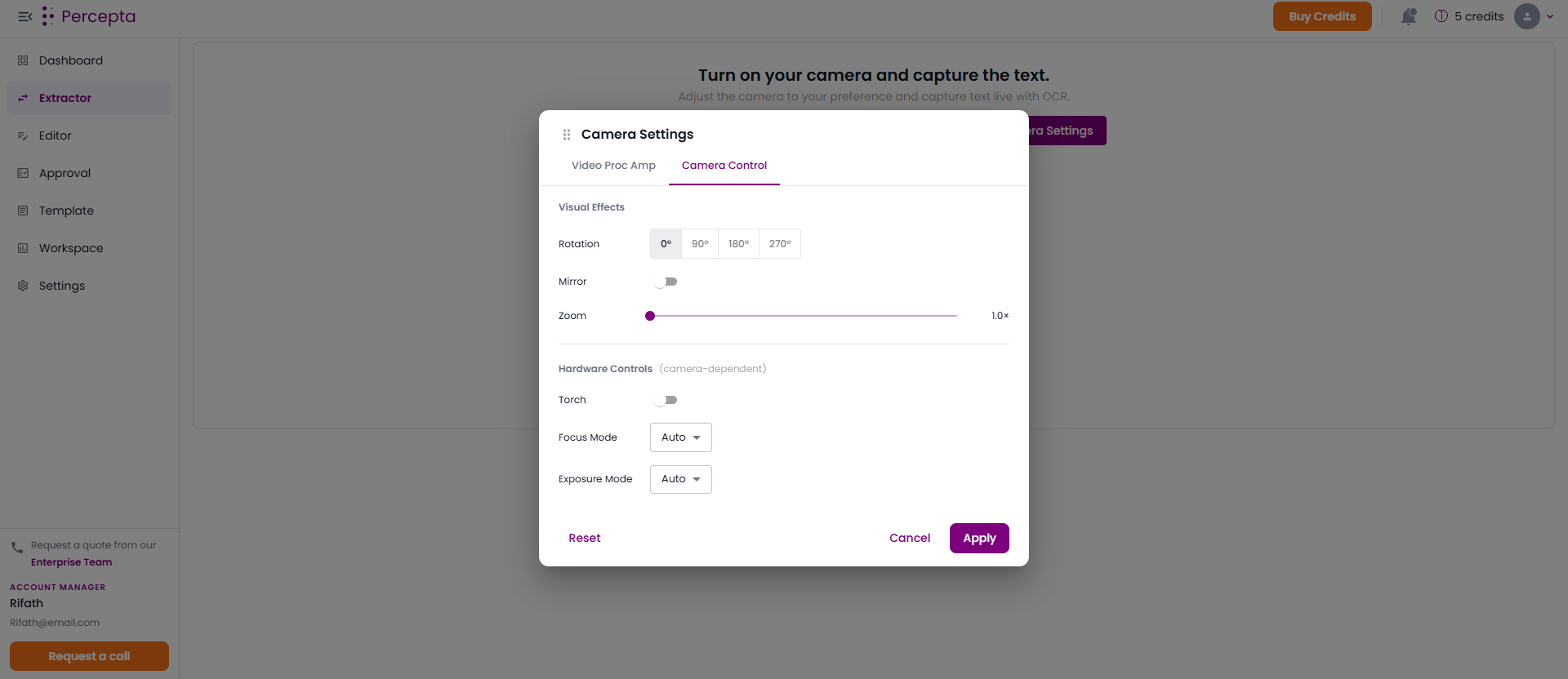
Step 3: Click “Open Camera Settings” to adjust camera preferences.
Adjust the Video Proc Amp for better camera quickly Video.
Adjust the Camera control for better visual effects and camera angle.
Step 4: Click the “Start Scanning” button to begin capturing.
Step 5: Review extracted text on the right panel and navigate between captures.
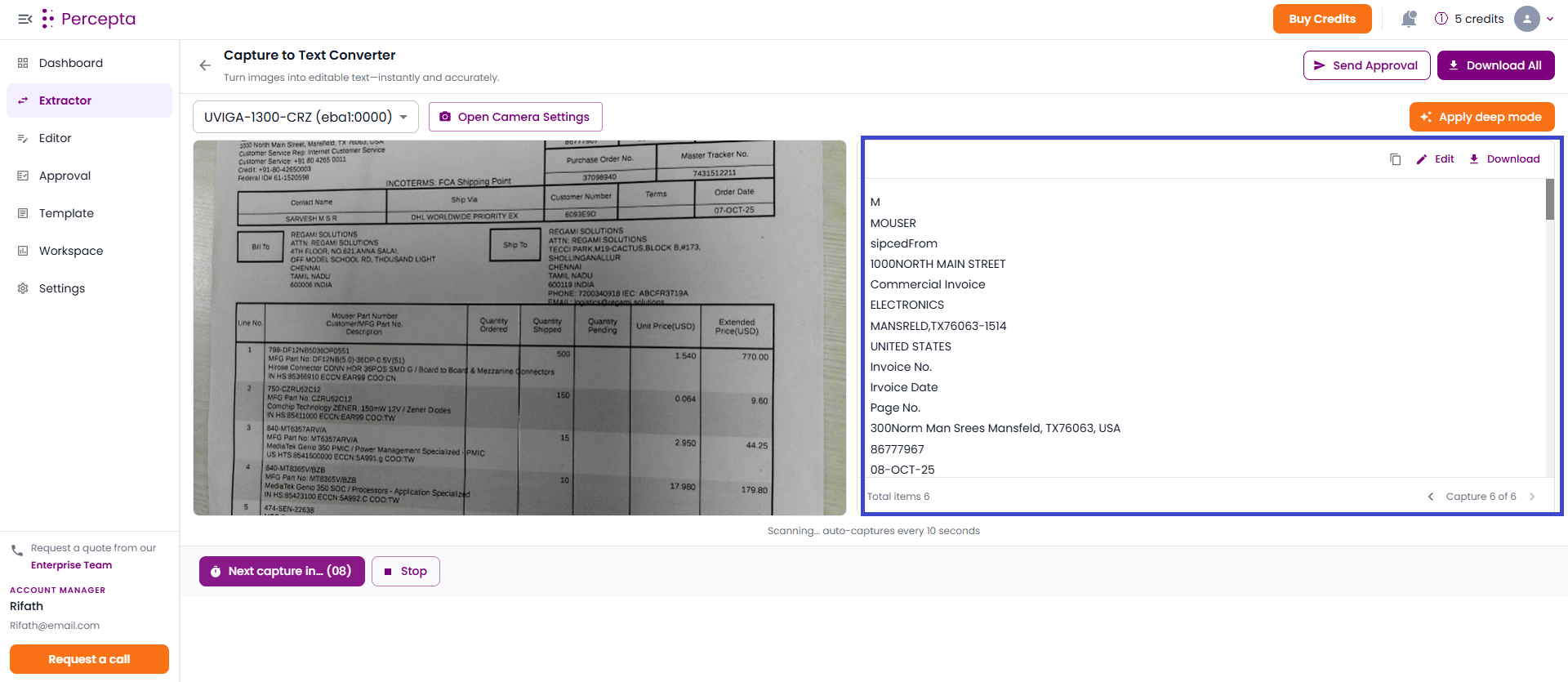
Step 6: Edit the extracted text and apply Apply Deep Mode for better accuracy.
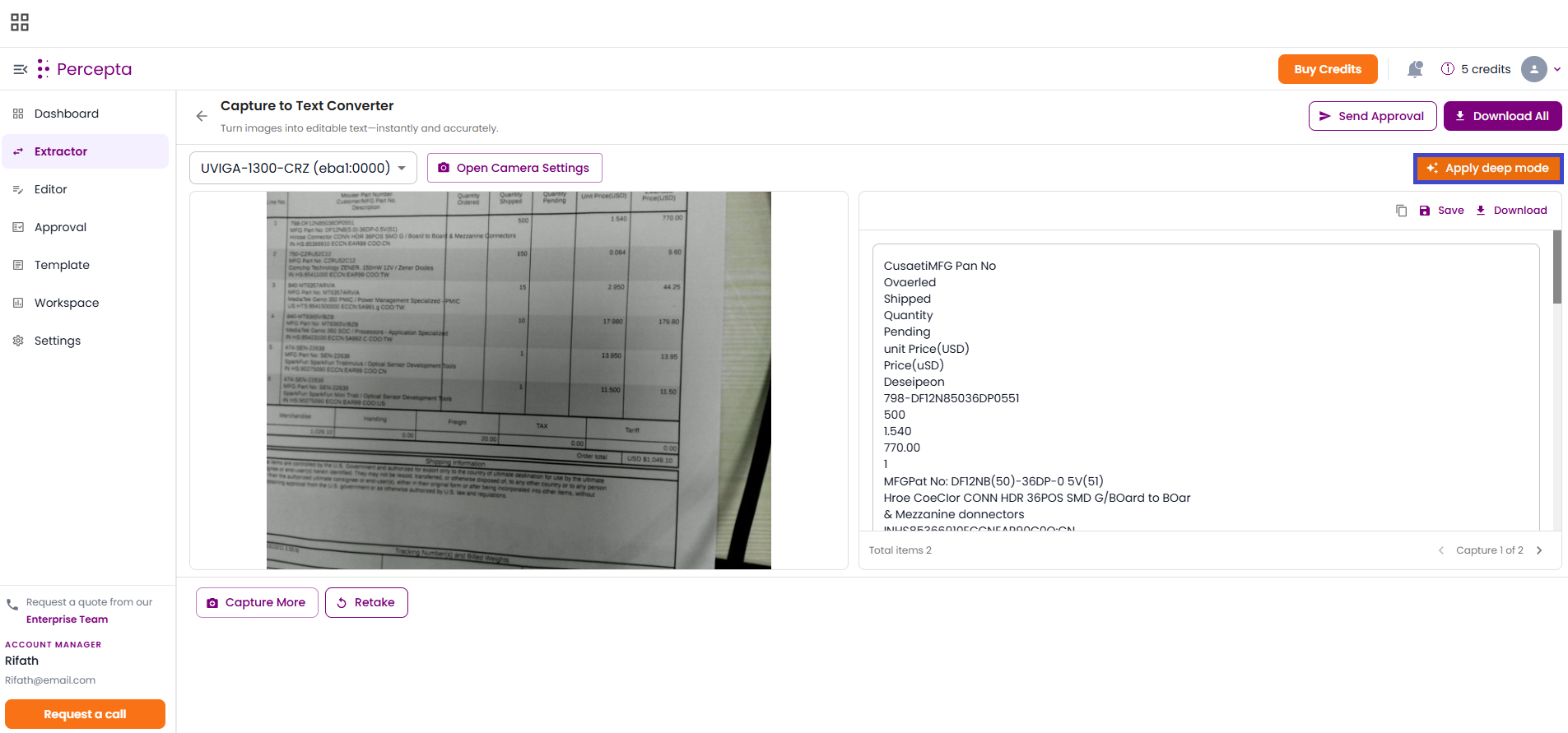
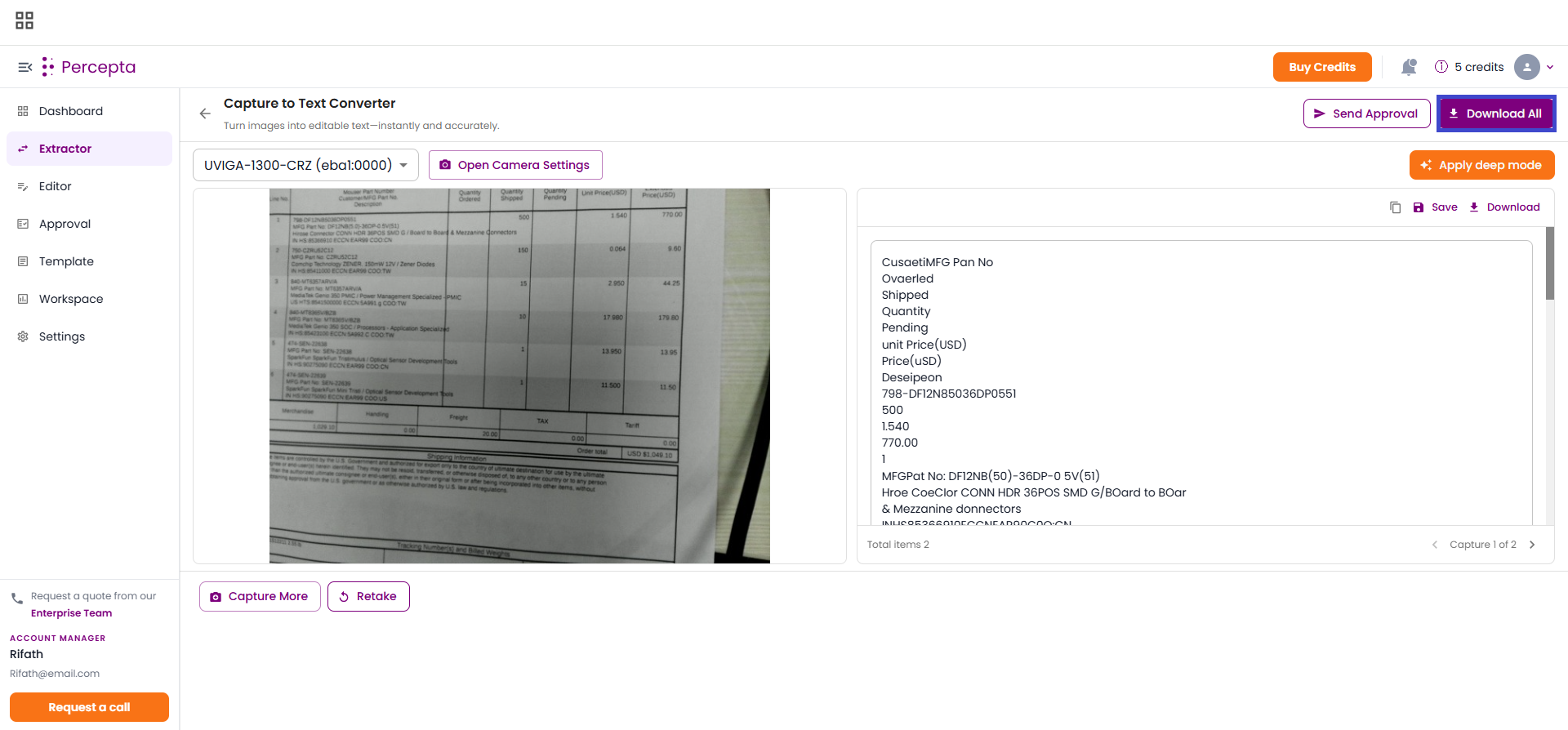
Step 7: Click Download All to export the results.
The downloaded file is exported to workspace.
Import Files
The Import Files feature allows users to upload documents from their file system and process them using OCR and templates.
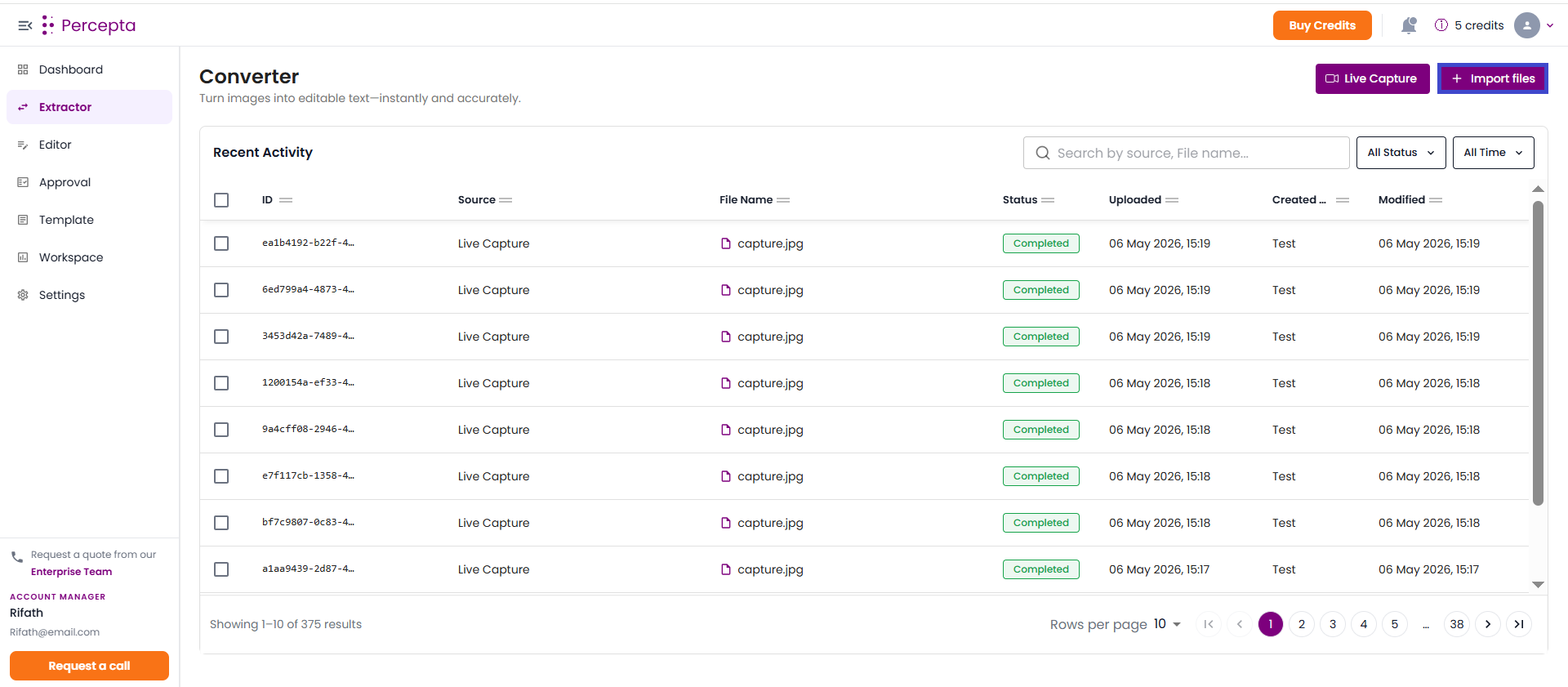
Step 1: On the Extractor page, click the “Import Files” button.
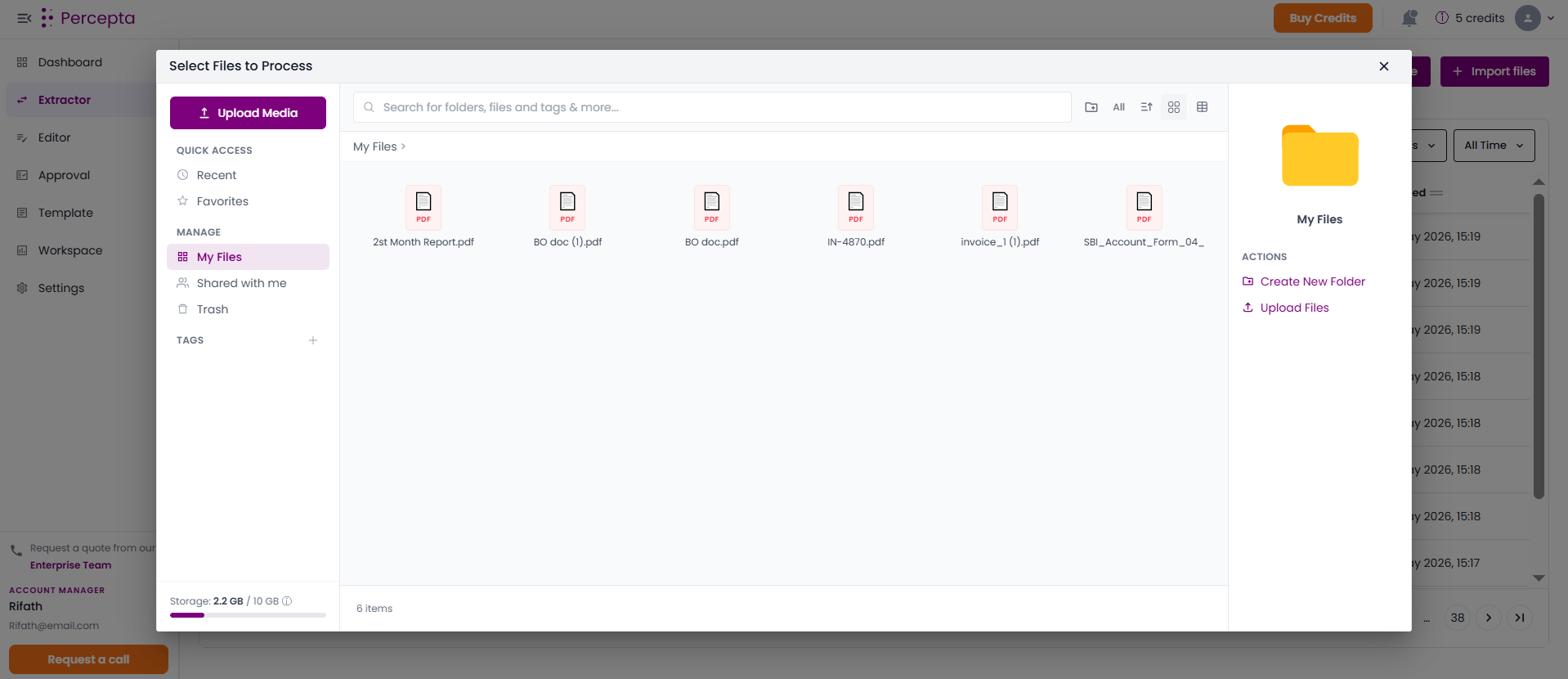
Step 2: The My Files window will open. Browse or search for your files and folders.
Use the search bar to quickly find documents
Navigate through folders
Select one or multiple files
Step 3: After selecting the file(s), choose one of the following options:
Extract Only Text: Perform basic OCR text extraction
Select Template to Parse: Use a predefined template for structured data extraction
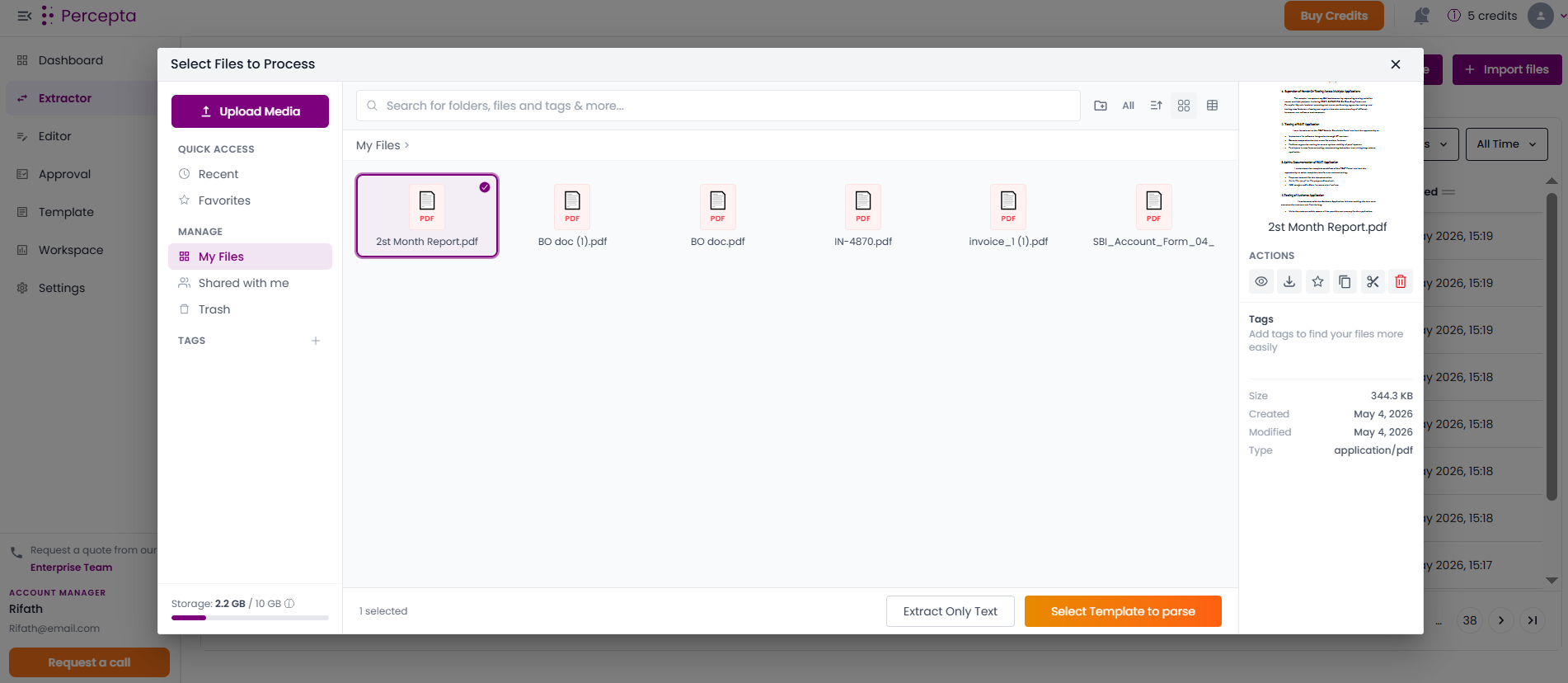
Step 4: If you select “Select Template to Parse”, the Template selection screen will appear.
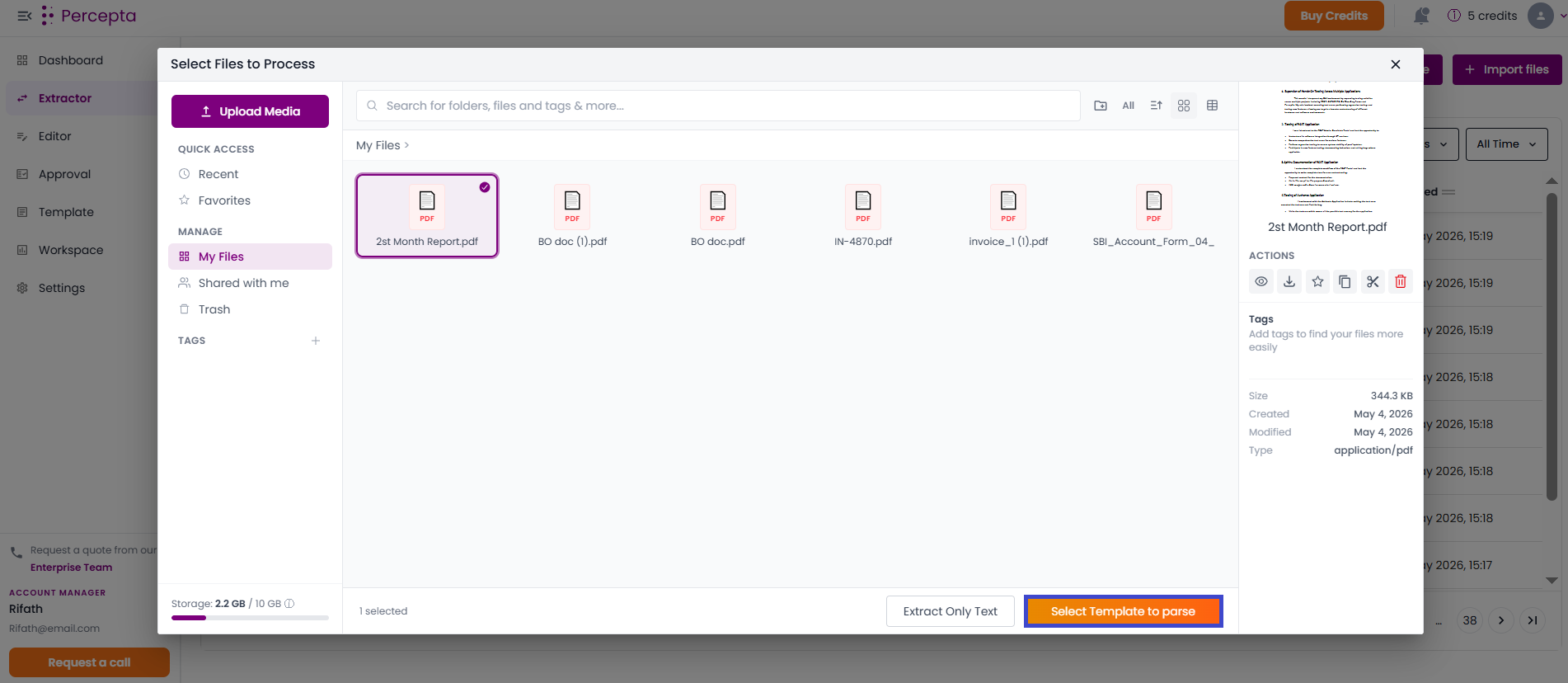
Choose a suitable template (e.g., Invoice Template)
Preview the template structure
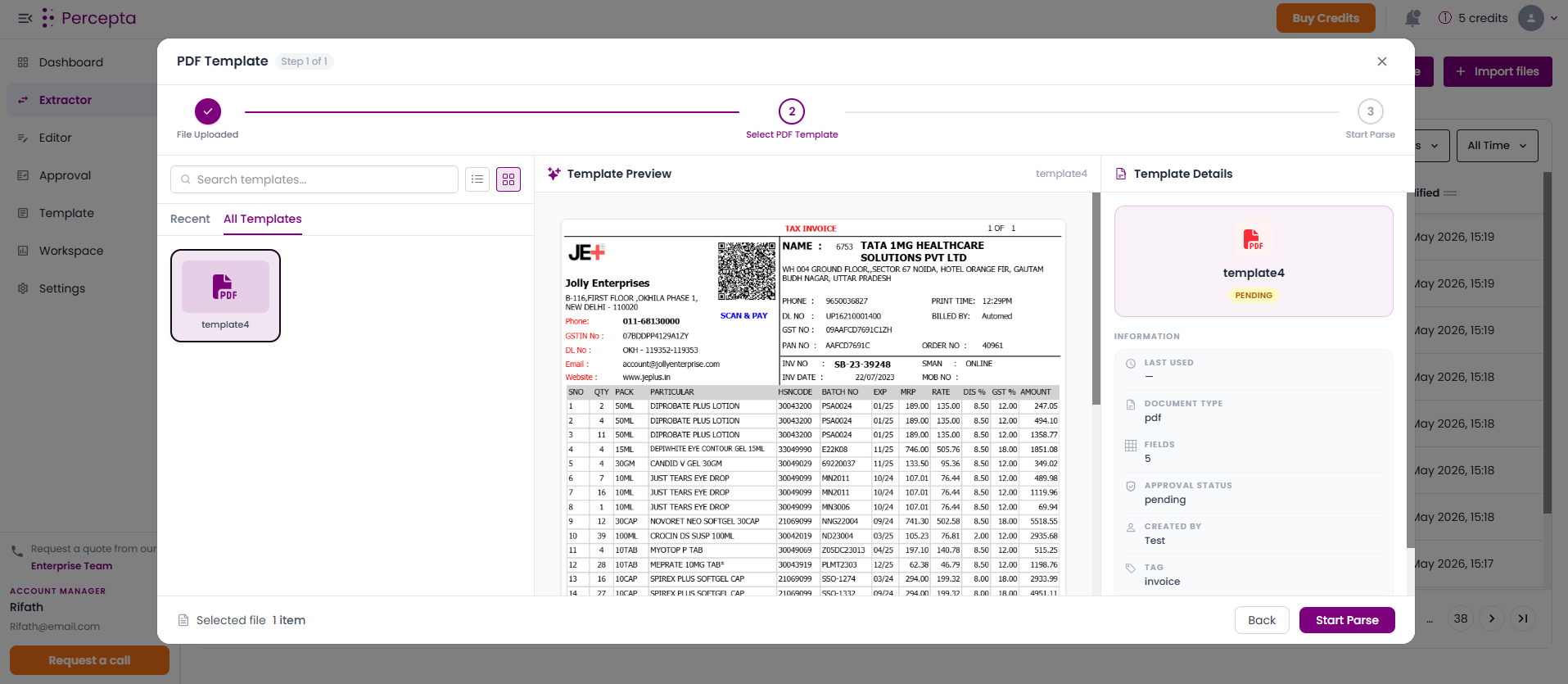
Step 5: Click “Start Parsing” to begin processing the document.
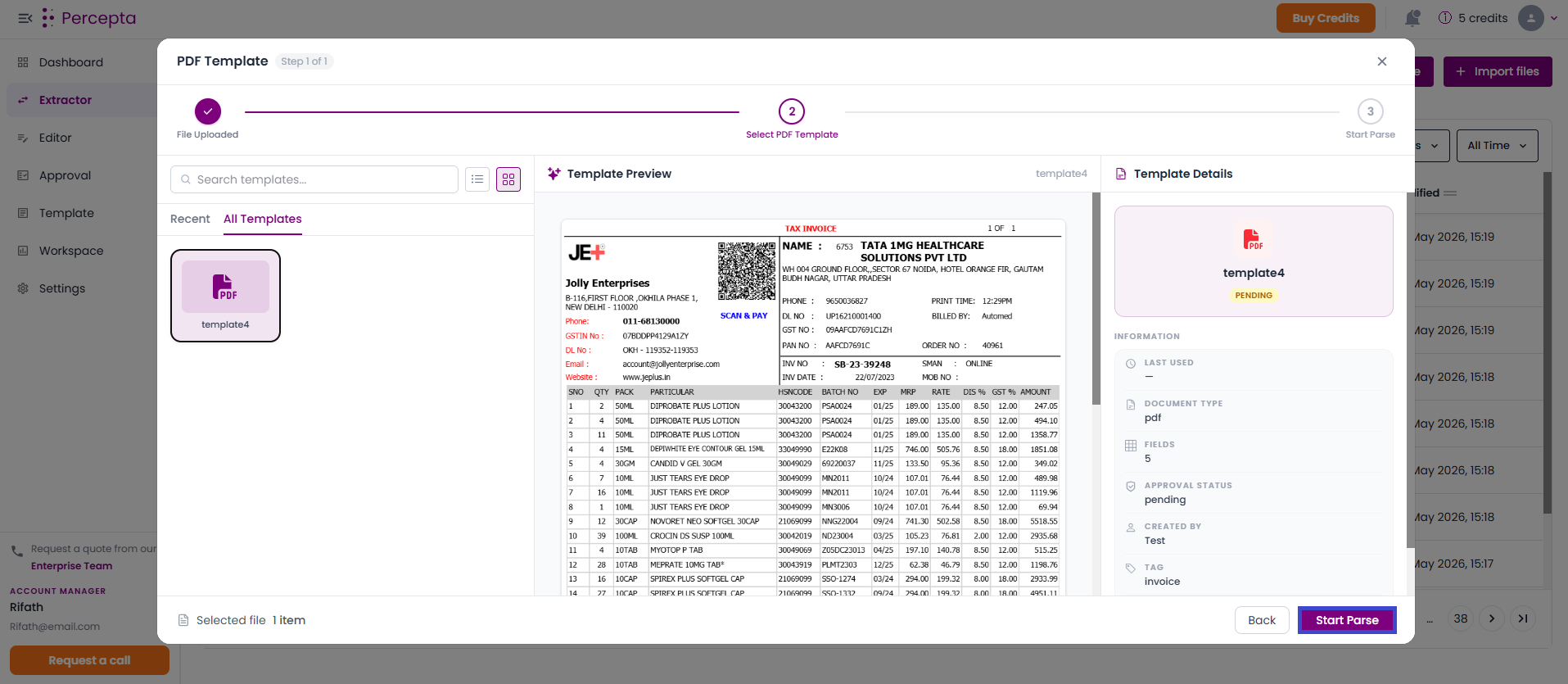
Step 6: The system will extract and map fields based on the selected template.
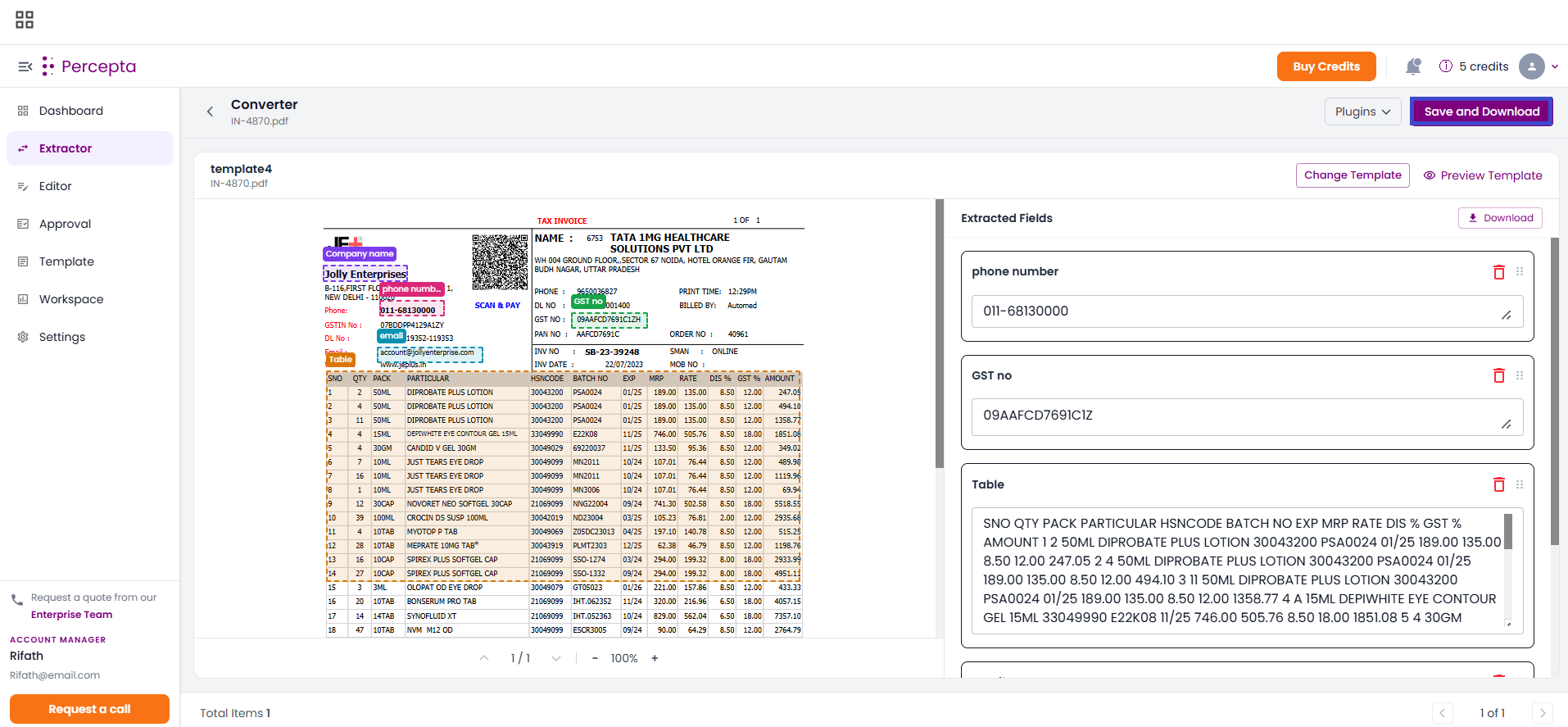
Review extracted fields such as Company Name,GST Number, Phone Number, etc.
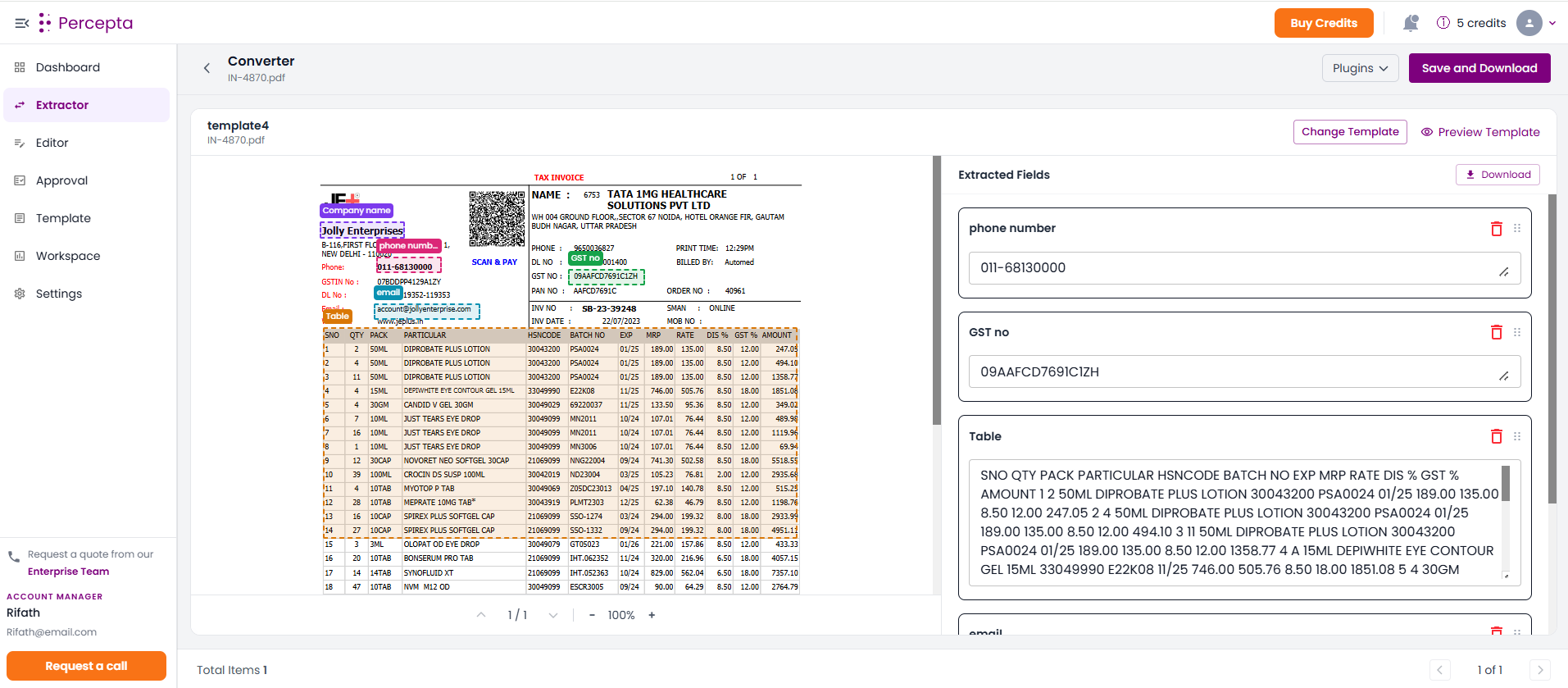
Edit any incorrect or missing values
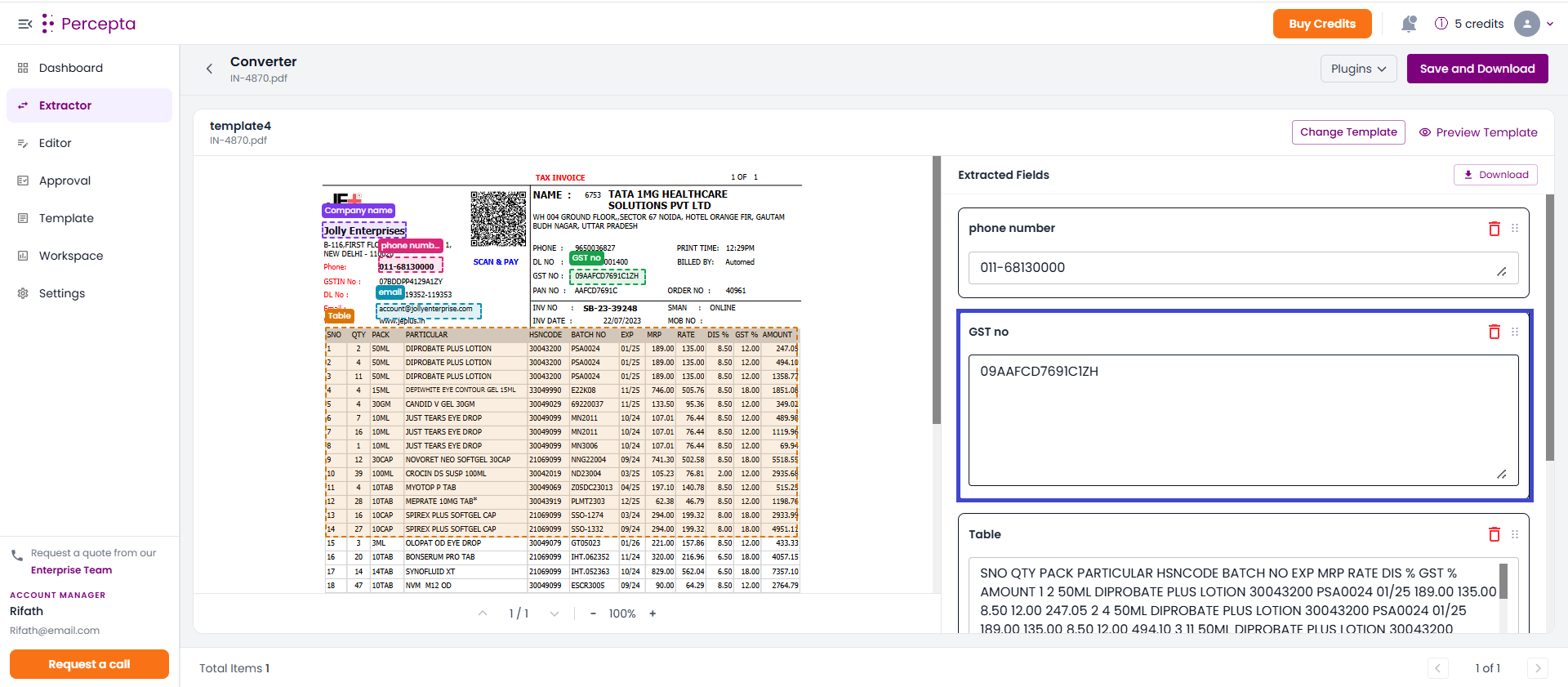
Step 7: Click “Save and Download” to export the processed data.
The downloaded file is exported to workspace.